
Remove a color from any image
Pick a color and it turns transparent. Free, no sign-up, no watermark, and your files stay in your browser.
or drop a file here · paste an image with Ctrl+V · JPG, PNG, WebP or HEIC · up to 50 MB and 6,000 px on the longest side · transparent PNG at the original size


Color removedLight Cyan #8CEFFF · Tolerance 5
Try an example
Each example opens in the same editor you get with your own image, with the color already picked.
How to remove a color from an image
To remove a color from an image, open the image, click the color you want gone, and download the PNG.
Upload an image
Choose a JPG, PNG, WebP or HEIC file, drop it anywhere on the page, or paste it. Pasting a link works too: your browser reads the image first, and when a site blocks that, our server fetches that one image for you.
Pick the color
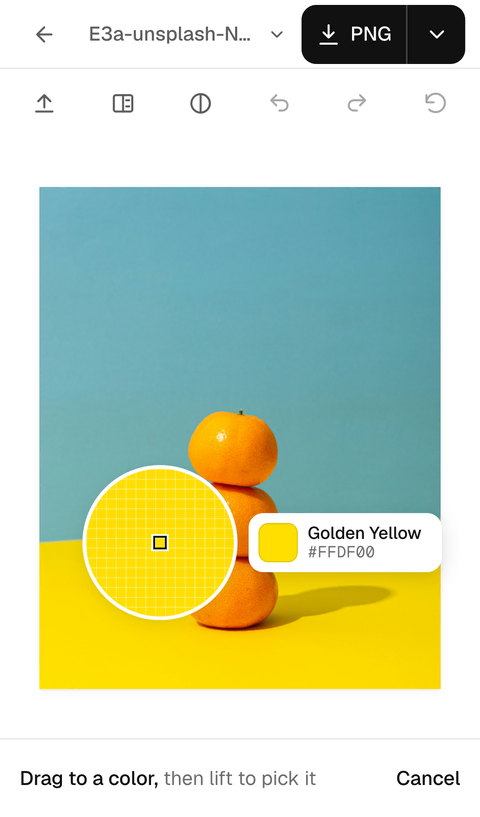
The color along the edge is picked when the image opens. Click it in the picture to remove a different one, or type its HEX value. Add color removes more than one. On a phone, press and hold, drag to the color and lift your finger. Tolerance sets how close a shade has to be.
Download a PNG
Check the result on a checkerboard, black or white, then download a PNG that keeps the transparency.
Color to Transparent at a glance
Color to Transparent is a free color remover that runs in your browser and turns one color in an image transparent, with no sign-up and no watermark.
| Price | Free. Nothing is held back for a paid plan. |
|---|---|
| No sign-up | You never create an account. |
| Watermark | None. The download is your image and nothing else. |
| Limit on images | None. Process as many as you like. Pasted links have a daily data limit. |
| Runs locally | Yes. Removal happens in your browser, on a computer, phone or tablet. |
| Uploads | Files you choose, drop or paste are never uploaded. Your browser reads a pasted link first. When a site blocks that, our server fetches that one public image and passes it straight back without keeping it. |
| Picking the color | Automatic from the image edge, a click or tap on the picture, press and hold for a magnifier on a touch screen, or a typed HEX value. |
| Removal range | The whole picture by default. With Only the connected area on, just the part touching the spot you click is removed. |
| Tolerance | 0 to 100, starting at 10. |
| Soft shading | Off by default. When on, each pixel fades toward transparent by how close it is to the color. |
| Colors at once | Up to five. Add color gives each one its own row and its own Tolerance. |
| Input formats | JPG, PNG, WebP and HEIC. |
| Max file size | 50 MB and 6,000 px on the longest side. A larger image can be shrunk to 6,000 px and opened. |
| Output formats | PNG or WebP with transparency, or JPG on a white or colored background. |
| Max free resolution | The original size. The file keeps its width and height unless you crop it or shrink an oversize image. |
| Phones and tablets | Yes, in the browser on iPhone, iPad and Android. There is nothing to install. |
| Best for | Flat backgrounds: logos, signatures, scans, green screens and seamless paper. A busy photo background needs the AI cutout tab. |
| Does not do | Replace a color with another color. Turn a picture black and white. |
| Commercial use | Yes, if you have the right to use the original image. |
What do people use it for?
People use this color remover to take one flat color out of an image so a logo, signature, scan, sticker or product shot sits cleanly on another background.
Logos and icons
A logo saved on a white or black background becomes a transparent PNG you can place on a slide, a website or a shirt mockup.
Signatures and handwriting
Scanned ink on white paper turns into a signature you can sign a PDF with.
Line art and pencil drawings
Remove the paper color and keep the lines. Soft shading holds light pencil strokes that a hard cut would lose.
Green and blue screen stills
Remove the green or blue from a still picture: pick the screen color and raise Tolerance a notch at a time until the edge is clean.
Product shots on seamless paper
Remove the paper color from a product photo and the object is ready for a new background. A shadow stays, because it is a different color.
Stickers and cutting machines
A cut file should hold only the artwork. A transparent background leaves nothing else to cut.
What does each setting do?
Each setting changes one thing about how you remove a color from an image, and the defaults suit a flat background.
| Setting | Starts at | What it does | Change it when |
|---|---|---|---|
| Color to remove | Edge color of the image | Sets the color that becomes transparent. Add color adds another row, up to five. | The wrong color was picked, or the background has more than one color. Use Pick or type a HEX value, and Add color for the second one. |
| Tolerance | 10 on a scale of 0 to 100 | Sets how close a shade must be to your color to be removed. | Shades are left behind: raise it in steps of 5. The subject is thinning: lower it. |
| Only the connected area | Off | Removes the color only where it connects to the spot you click. | The same color inside the subject has to stay. |
| Keep soft shading | Off | Fades each pixel by how close it is to the color, instead of cutting it out. | The picture has smoke, haze or light pencil lines. |
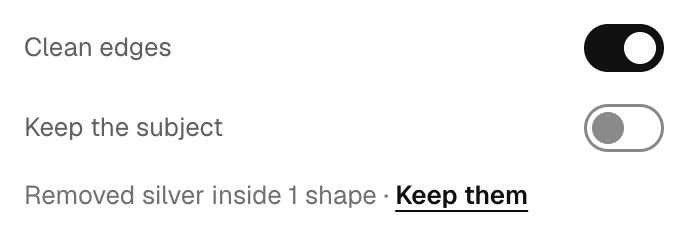
| Clean edges | On | Takes the old color out of the blended pixels along an edge. | The edge looks too dark or too saturated. |
| Keep the subject | Off | Finds the subject and keeps matching colors inside it. | A photo's subject shares the background's color, like a white shirt on white. |
| Mask view | Off | Shows what is removed in black and what stays in white. | You want to check an edge, or tell similar colors apart. |
| View | Auto, which shows a checkerboard and switches to Overlay while you touch up | Changes only what you see on screen, never the file. Choose Auto, Overlay, Checker, Black or White. | You want to spot a halo that hides on one background. |
How do I remove every shade of one color, like all the green?
To remove every shade of one color from an image, raise Tolerance in steps of 5 from the default of 10 until the last shade is gone, and stop as soon as the subject starts to thin.
Click a mid-tone shade of the color, not the lightest or the darkest, so the shades on both sides fall within reach. Whatever you pick is removed from the whole picture, not only from the background, so a green screen and a green leaf in the same photo go together.
In our tests on studio shots, 10 cleared flat paper and painted walls. The shaded green backdrop in these pictures needed 20. At 30, the subject began to go too: the cutting board disappeared and the cup was cut away. A higher number is not a better number.
Shades that sit too far apart for one setting, such as pale green and deep green, take two colors. Pick one, choose Add color, and pick the other. Each color keeps its own Tolerance, and both turn transparent together.


Why did the same color inside my subject disappear?
Removing a color from a picture works on color, not on shapes, so by default every part that matches your color goes, including parts inside the subject.
Three settings bring those parts back. Choose the one that fits your image.
Only the connected area
Click the background, then turn this on. Only the part of that color that connects to the spot you clicked is removed, so white lettering inside a blue badge stays. A color that reaches the background through a gap counts as background too. Close the gap in your source file, or paint it back with Restore.


Keep the subject
Made for photos. The editor finds the subject and keeps any matching color inside it, such as a white shirt on a white backdrop. The first time you turn it on, the editor needs a moment to get ready. After that it comes on quickly.
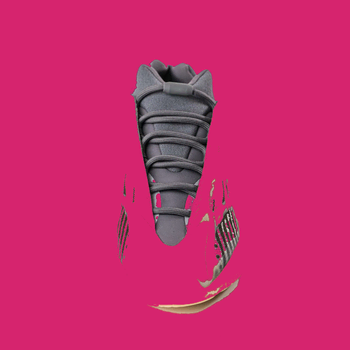
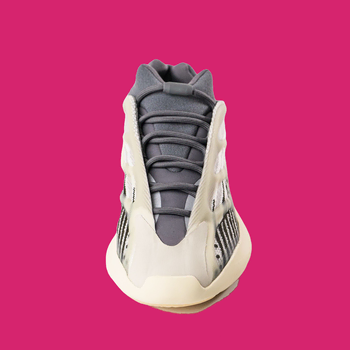
Keep them
Made for logos and other flat graphics. When the editor removes the same color inside letters or shapes, a line below the settings tells you how many, for example Removed white inside 2 shapes. Click Keep them to restore those shapes. The line does not appear when your picked color never touches the edge of the picture, because there is nothing to restore.
Why is there a white halo around my subject?
A halo is a thin ring of the old color left on the edge pixels, because those pixels are a blend of your subject and the background.
Keep Clean edges on, which is the default. It takes the background's share out of every blended pixel along the edge, so a light ring on a dark background fades away. If a ring is still there, raise Tolerance by 5 and look again. Set View to Black and to White, because a halo can hide on a checkerboard and show on one of the others. Mask view shows leftovers in white, which makes them easy to spot.
One trade-off: Clean edges can make the outermost pixels a little darker or more saturated than the original. On some white-background product shots that shows as a thin dark outline. If it looks worse than the halo, turn Clean edges off. Raising Tolerance also removes similar colors in the subject, so stop as soon as the ring is gone.


Shown on black
Why does a JPG not come out clean?
When you remove a color from a JPG, specks can stay behind, because saving a JPG speckles the pixels: a background that looks flat is really many slightly different shades, and some of them fall outside your tolerance.
Two different problems look alike. Specks in the background are shades the compression scattered around. Raising Tolerance from 10 to 20 can clear them. A ring around the subject is the edge blend described above, and Clean edges handles it. In our tests on JPG logos, 10 already cleared most of the backdrop, and 20 removed a few more stray pixels along the edges of one emblem, but it also took a pale blue area out of a seal, as in the pictures. Raise Tolerance one step at a time and look at the picture at 100%.
Damage that sits inside the subject cannot be undone, and a JPG that was saved again and again looks worse each time. Start from the original PNG or a vector file when you still have one. Tiny isolated specks of the color inside the subject count as part of the subject, so take those out with Erase.


How can I keep smoke, haze and pencil lines semi-transparent?
Switch on Keep soft shading to remove a color from an image and keep smoke or haze semi-transparent: it fades each pixel toward transparent in proportion to how close it is to the color, instead of cutting it out.
With it off, a pixel is either kept or removed, so faint wisps of smoke turn into solid gray patches and light pencil strokes turn grainy. With it on, a gray wisp on black keeps its gray as partial transparency, and it looks natural on whatever background you place it on. A black ink signature on white paper looks the same either way, so leave the setting off for those.


Why does my downloaded PNG look white or black?
Most of the time the file is fine: either the program showing it paints a solid color behind the transparent parts, or the file was saved in a format that cannot hold transparency.
1. You downloaded a JPG. A JPG cannot store transparency, so the editor fills the empty area with white, or with the background you chose. Download PNG or WebP, and check that the file name ends in .png or .webp.

2. A background was selected. When you pick White, Black, a color, a photo or Blur under Background, the download includes it. Choose the transparent swatch before you download.

3. The viewer paints a color behind transparent areas. A program chooses its own color to show behind transparent pixels, and it is not always a checkerboard. In our test, Chrome showed a transparent PNG on light gray in a browser tab. Place the file over a colored shape: when the color changes, the file is fine.

4. You saved a screenshot. A screenshot of the checkerboard preview saves the checkerboard as part of the picture. Use Download instead.

5. A trace of the old color is left. Near-white leftovers vanish on a white page and show on a dark one. Set View to Black or White to see them, then raise Tolerance by 5.

6. The picture itself contains a checkerboard. See the next section.
What if my image has a fake checkerboard in it?
A fake checkerboard is a real pattern of gray and white squares drawn into the picture, so you remove the squares from the image like any other background color.
It usually happens when someone saves a screenshot or a JPG of a transparent image. The squares give themselves away: they stay when you place the image on a colored background. Load it here and the editor reads the squares from the edge. In two of our three test files, the default Tolerance of 10 cleared both square colors in one pass. In the third, one color of square was left, and adding it with Add color removed it as well, along with the white parts of the artwork.
Light gray or white parts of the artwork itself can go with the squares. Paint them back with Restore. A thin line of specks can remain along the outline, so erase it or raise Tolerance by 5.

What does Color to Transparent not do?
It removes colors from an image and makes them transparent, and nothing else: it does not swap a color for another one, and it does not turn the picture black and white.
It does not replace a color
Your picked color becomes transparent, not another color. To recolor a logo, use the Replace Color or Hue and Saturation tools in a general editor. To put a different color behind the cutout, choose a background in the editor before you download.
It does not make a picture black and white
Use the Black and White or Desaturate command in any photo editor to desaturate a photo. Removing a color deletes pixels. Black and white keeps them and drains their color.
It removes up to five colors at a time
Each color has its own row and its own Tolerance. For more than five, remove five, download the PNG, open it again and remove the rest.
It is not a background remover for busy scenes
When the background is one flat color, removing the color and removing the background are the same job. A street, a room or hair in front of a crowded backdrop has no single color to remove. An AI cutout tab in the same editor handles photos like that.
When should I use Photopea, GIMP or Photoshop instead?
Use a general editor when you need to shape the selection by hand, keep layers, remove more than five colors, or replace the color instead of removing it.
| Job | Color to Transparent | A general editor |
|---|---|---|
| One flat color to transparent | A few clicks in the browser, nothing to install. | More steps, but full control. |
| More than five colors, or an irregular area | Up to five colors in one go, then Erase and Restore. | Select by hand or with layers. |
| A fade that follows how close a pixel is to the color | Keep soft shading. | GIMP has Color to Alpha, and Photopea has a Color to Alpha filter under Filter, Other. |
| Replace a color, recolor, or go black and white | Not available. | Yes. |
| Layers, masks and painting | Erase and Restore brushes only. | Yes. |
| Many files at once | One image at a time. | Actions or batch tools. |
| A quick job on a phone | Works in the browser. | Heavier on a small screen. |
In Photoshop, the closest tools are Select, Color Range and the Magic Wand with Contiguous turned off.
Does it work on iPhone, iPad and Android?
Yes: you can remove a color from a photo in your phone's or tablet's browser, with nothing to install.
Choose a photo from your library, including HEIC photos from an iPhone. Color along the edge is picked automatically. To pick another color, press and hold on the picture, drag until the magnifier shows the color you want, and lift your finger. Typing a HEX value works too. On a phone, removal starts right away. Keep the subject needs a one-time preparation, and the editor says so while it works.
The download is the same PNG you would get on a computer.
Is my image private, and how can I check?
Files you choose, drop or paste are processed in your browser and never uploaded, and you can check that yourself.
Where it runs. Removal runs in your browser, on your computer, phone or tablet.
What leaves your device. Nothing from a file. When you paste a link, your browser tries to read the image first. When a site blocks that, our server downloads that one public image for you and passes it straight to your browser without saving it.
If something fails. The editor tells you what to try. It never falls back to sending your file anywhere.
Training. We do not use your images to train models.
How to check. Open your browser's network panel, add an image, and watch. Its own files may load in the background, but no request carries your image. Or add an image, turn off your connection, and add another. It keeps removing color without a connection.
Feedback. Feedback you send includes what you write and any screenshots you attach. A screenshot can show your image, so check it before you send.
Frequently asked questions
How do I remove a color from an image?
Open the image, click the color you want gone, and download the PNG. Everything that matches that color turns transparent. If a trace of it is left along the edge, raise Tolerance a little and keep Clean edges on.
Can I remove all the green from a picture at once?
Yes, within limits. Raise Tolerance in steps of 5 from the default of 10 until every shade of green is gone from the picture, and stop when the subject starts to thin. Click a mid-tone shade, not the lightest or darkest. Shades that are far apart, like pale and deep green, take two colors: pick one, then choose Add color for the other.
Why did the same color inside my subject disappear?
Removing a color from an image takes it from everywhere in the picture by default, so matching areas inside the subject go too. Switch on Only the connected area, or Keep the subject for a photo. On a logo, click Keep them in the settings panel to restore the enclosed shapes.
Can I remove the background but keep the white in my logo?
Yes. Click the background to pick it, then switch on Only the connected area. White inside the letters stays as long as it is fully enclosed. A white that reaches the background through a gap counts as background, so close the gap or paint it back with Restore.
What causes a white halo around the edge?
Pixels along an edge are a blend of the subject and the old background, and that blend can read as a ring. Keep Clean edges on, then raise Tolerance by 5 if the ring is still there. Check the edge on Black and on White in View.
Why is my JPG still speckled after I remove the color?
Saving a JPG scatters slightly different shades through a background that looks flat. Raising Tolerance from 10 to 20 can clear the specks, but it can also remove similar colors in the subject, so go one step at a time. A PNG or vector original gives a cleaner result.
My transparent PNG looks like it has a background. Is the file broken?
Usually not. The program showing it paints a color behind the transparent parts, or the file was saved as a JPG, which cannot hold transparency. Download PNG or WebP, choose the transparent swatch under Background, and try the file in a browser tab to check.
Can I remove a fake checkerboard that is part of the picture?
Yes, because the squares are real pixels and you remove them like any other color. Load the image and the editor reads the squares from the edge. When one square color is left, choose Add color and pick it.
How can I remove two colors from one image?
Pick the first color, then choose Add color and pick the second. Each color has its own row and its own Tolerance, you can add up to five, and they turn transparent together.
Does it replace a color or make the picture black and white?
No. Your picked color turns transparent rather than changing into another one, and the rest of the picture keeps its colors. A general photo editor handles replacements and black and white versions.
What does tolerance mean?
Tolerance is how far a shade can be from the color you picked and still be removed. It runs from 0 to 100 and starts at 10. Low values remove only near-identical shades. High values reach further and begin to remove similar colors in your subject. The number is not a percentage, so it does not match other tools' sliders.
Is it free, and do I need an account?
It is a free color remover with no account, no watermark and no limit on how many images you process. Pasted links have a daily data limit.
Are my images uploaded anywhere?
Files you choose, drop or paste are never uploaded. They are processed in your browser. Your browser reads a pasted link first, and when a site blocks that, our server fetches that one public image and passes it straight back without keeping it.
Which file types and sizes work, and do I keep the original resolution?
JPG, PNG, WebP and HEIC work, up to 50 MB and 6,000 px on the longest side. The download keeps the original width and height unless you crop it or shrink an oversize image to 6,000 px first.
Which format should I download: PNG, WebP or JPG?
Choose PNG for the widest support. WebP also keeps transparency and is usually smaller, but some older programs cannot open it. A JPG cannot hold transparency, so the editor puts a white or colored background behind your picture.
Does it work on iPhone and Android?
Yes. You can remove a color from a picture in your phone's browser: choose a photo, then press and hold on it to pick a color. HEIC photos from an iPhone open directly. Nothing needs installing.
Should I use Photoshop, GIMP or Photopea instead?
A general editor is the better choice for layers, selecting by hand, or replacing a color. Color to Transparent is the shorter route when you just need to remove one flat color, or a few of them, from an image.
Will it remove the background of a photo?
Only when the background is one flat color. A busy background calls for the AI cutout tab in the same editor.